How it works
How AI case analysis works, in five steps
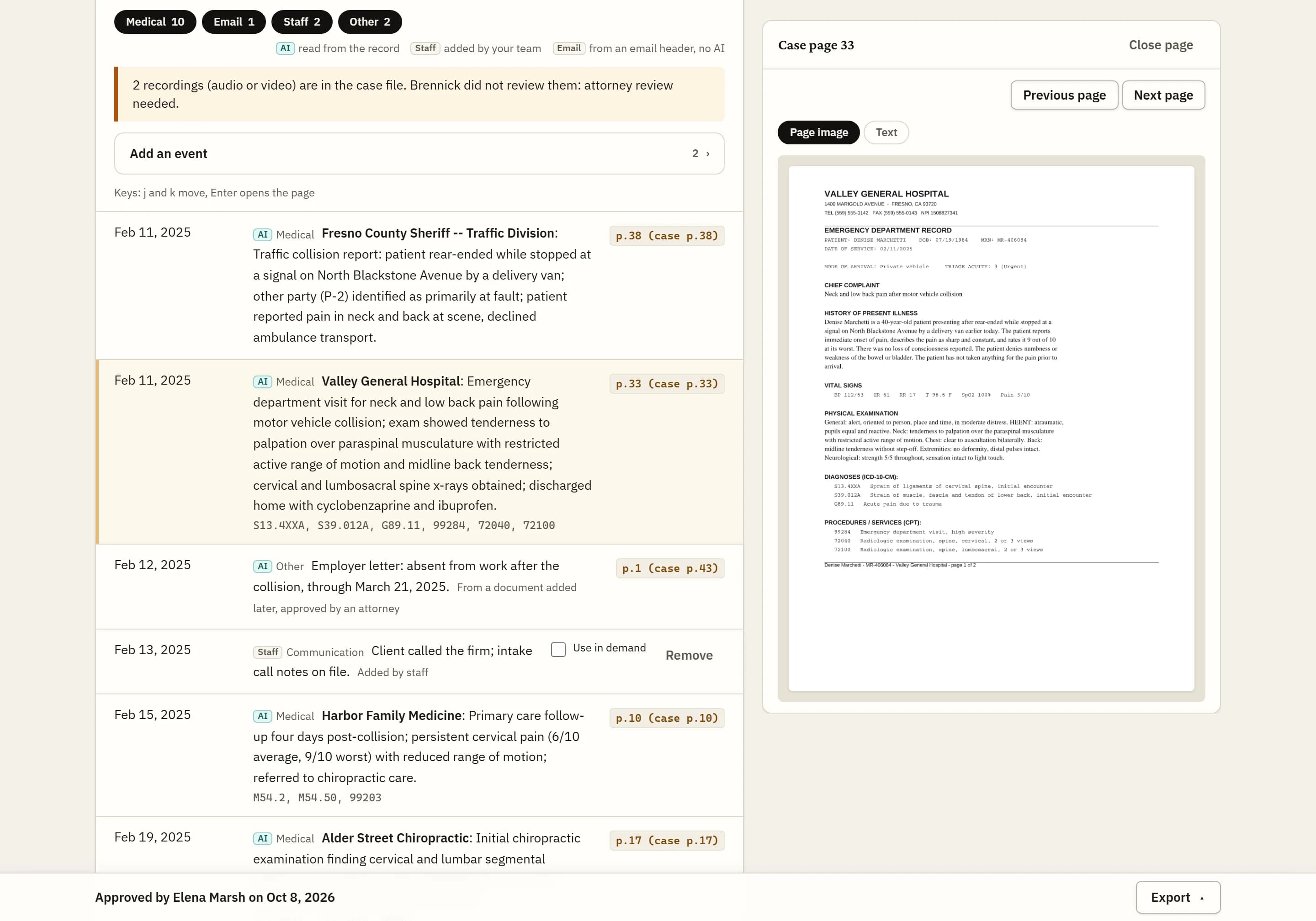
Your staff bring the case in, Brennick reads every page, and a licensed attorney at your firm makes the decisions that count. Nothing Brennick drafts is used until your attorney approves it.
- 01Case comes inintake or upload
- 02AI draftcited to pages
- 03Attorney reviewedit, approve or reject
- 04Approvedexport, demand, report
- 05Clientnever sees AI output
Who this is for
Partners and office managers deciding whether Brennick fits the firm, and the paralegals and case managers who will run cases through it, in personal injury and employment. The California personal injury deadlines guide lists the dates the intake step collects, and pricing shows what each plan includes.
The five steps
Step 1: The case comes in
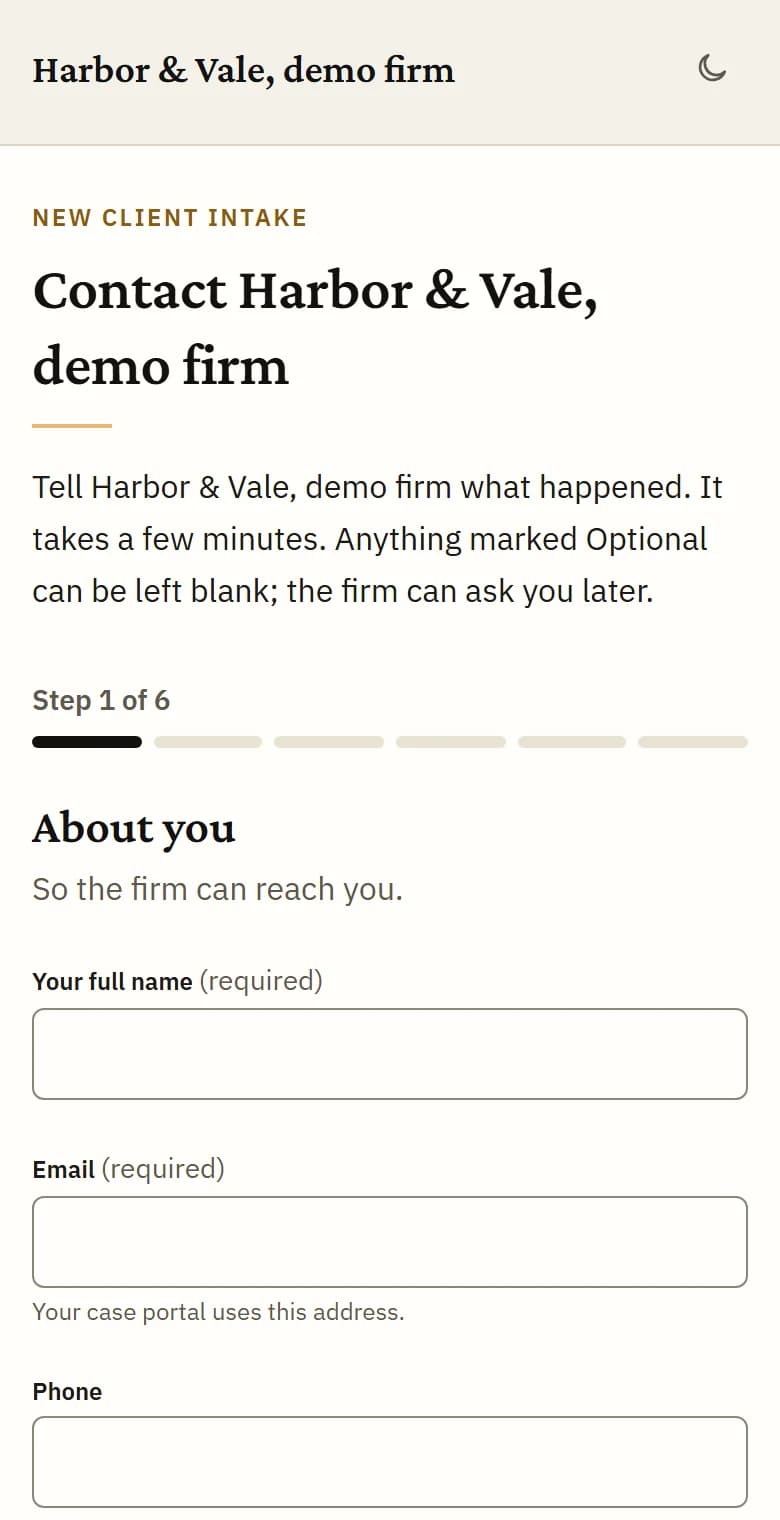
A client fills in your firm’s intake page, your staff open a case and add the file, or a case is imported from Clio. PDFs, scans, Word, email, spreadsheets and phone photos all work. A new submission starts no AI: nothing is read until your firm chooses to analyze it.
Step 2: Conflicts checked, then a decision
Every party named on the case is checked against your firm’s other cases. A possible match waits until a person at your firm clears or confirms it. Only a licensed attorney at the firm can accept or decline a case, and a case cannot be accepted while a conflict is open.

Step 3: Brennick reads every page
Accepting a case starts the analysis, and any staff member can choose “Analyze before deciding” first. Every page is read, scanned ones included. Each timeline entry cites its page, treatment gaps and missing records are flagged, and the bills become a charges ledger with every amount cited. Brennick then assesses strength, estimates damages where a legal basis is stored, and drafts the demand.
Step 4: Your attorney reviews and approves
Your attorney opens the timeline, the gaps, the strength assessment and the damages estimate, edits what needs editing and approves the analysis. The damages estimate has its own attorney review. Every approval and every edit is written to the audit log.

Step 5: The demand and the follow-up
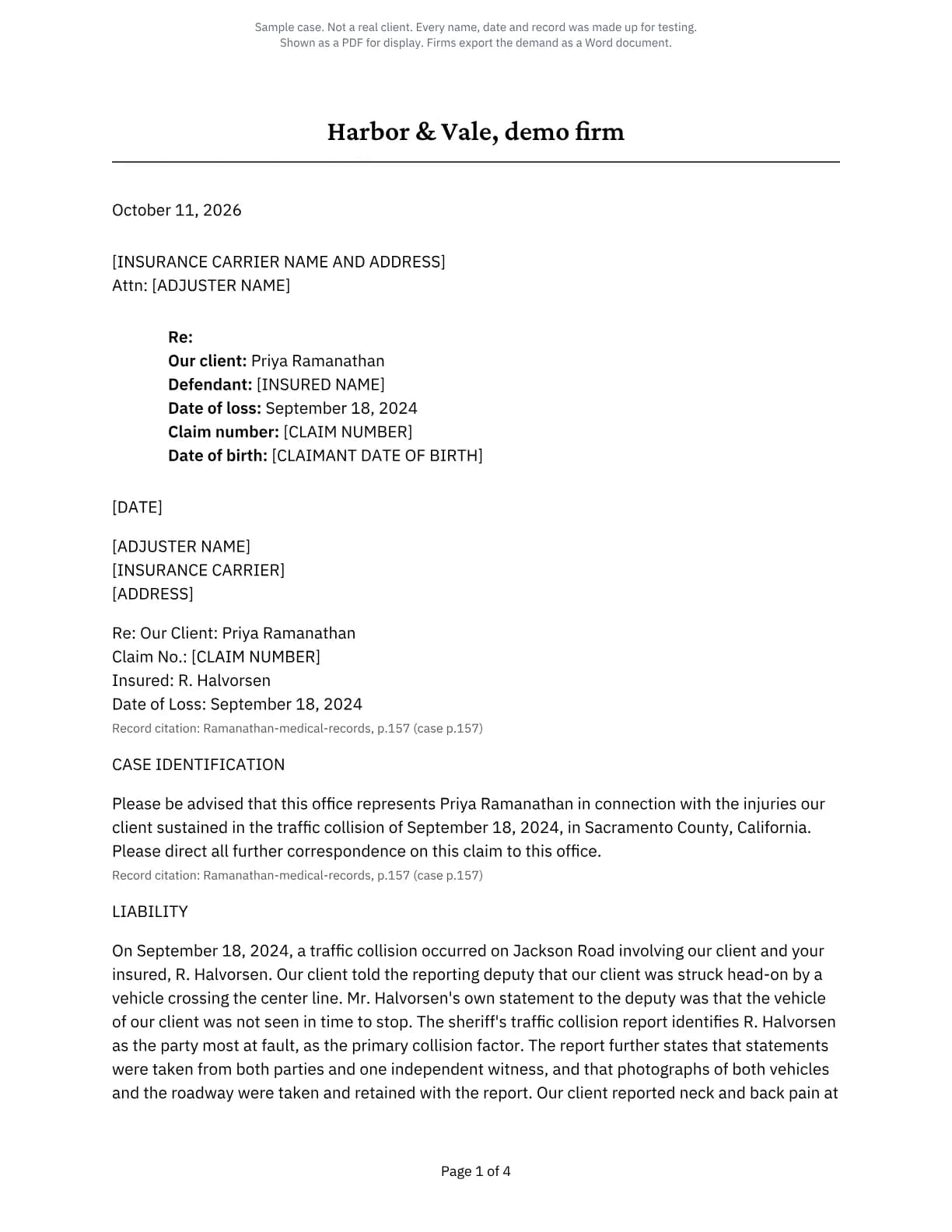
The demand is drafted in your firm’s style, learned from sample letters your firm uploads, with a specials table built from the bills and cited to their pages. Your attorney sets the amount and exports it. Statute of limitations tracking, the client portal, records requests and calendar sync follow the case.
Importing from Clio and calendar sync come with Brief and above; records requests with Docket and above.
Who does what
Two flags decide who can act: firm admin and licensed attorney. Everyone else at your firm is staff. The same table decides which buttons appear on screen and what the database accepts.
Your firm can also turn on “Only the responsible attorney may approve AI output on their cases”. With it on, only the case’s responsible attorney approves the analysis, the damages review and the demand; a case with no responsible attorney falls back to any licensed attorney at the firm.
Everyone at your firm
Open cases and add records, run the conflict check, choose “Analyze before deciding”, add events to the timeline, ask questions of the case, build a strategy report, and turn AI processing off on a case.
Licensed attorneys
Accept, decline and resolve cases, approve the analysis and the damages review, export the demand, enter and verify the statute of limitations date, and clear a 42 CFR Part 2 case for AI processing.
Firm admins
Change firm settings, manage the team and billing, buy extra cases, connect integrations and export the firm’s data.
- AI draftcited to pages
- Attorney reviewedit, approve or reject
- Approvedexport, demand, report
- Clientnever sees AI output
Every step written to the audit log.
What counts as a case
A case counts when your firm accepts it or chooses to analyze it before deciding, and only if its analysis completes. Submissions you decline never count, and re-running a case or adding records to it never counts again.
Each plan includes a set number of new cases a month, and each extra case is $10. If a case needs an extra case and none is left, it waits and starts by itself once one is bought or the month resets. A case that has started is never stopped part way.
Asking questions of a case, building a strategy report and redrafting a demand never count as a case.
Safeguards along the way
- Every file is cleaned before any model sees it: document scripts, attachments, annotations and hidden metadata are removed.
- Any staff member can turn AI processing off on a case. Only a licensed attorney can turn it back on.
- A case flagged as holding 42 CFR Part 2 records sends nothing to any model until a licensed attorney clears it.
- Clients never see AI output. The portal shows their status, messages, uploads and to-dos, never a timeline, a score or a damages range.
- The statute of limitations date is calculated only in California, where the rules are verified. In every other state your attorney enters it, and a government defendant means no calculated date at all.
Plans
Every step on this page is on every plan: Solo, Brief, Docket and Enterprise. Clio import and calendar sync start at Brief; records requests at Docket.
See pricingFAQs
Does a declined submission use up a case?
No. Submissions you decline never count, and no AI reads them.
Can staff start the analysis before an attorney decides?
Yes. Any staff member can choose “Analyze before deciding”. A confirm step says it uses one of your firm’s cases this month.
What happens to records added after approval?
Only the new document’s pages are read. Its events show as new since approval and wait for an attorney to review them. The approved analysis is not changed, and adding records never counts again.
Who sees the analysis?
People at your firm. Clients never see it, on any plan.
Run one case through all five steps
3-day trial, 1 case, card required. Bring a file you know well and check each step against it.